

Chrome extensions every NetSuite developer should install: faster scripting, record inspection, internal ID lookups, and saved-search shortcuts.
To get the extensions, go to https://chrome.google.com/webstore/category/extensions Type in “NetSuite” in the search bar. It will show three extensions but there are more. Click on “More extensions” to see them.
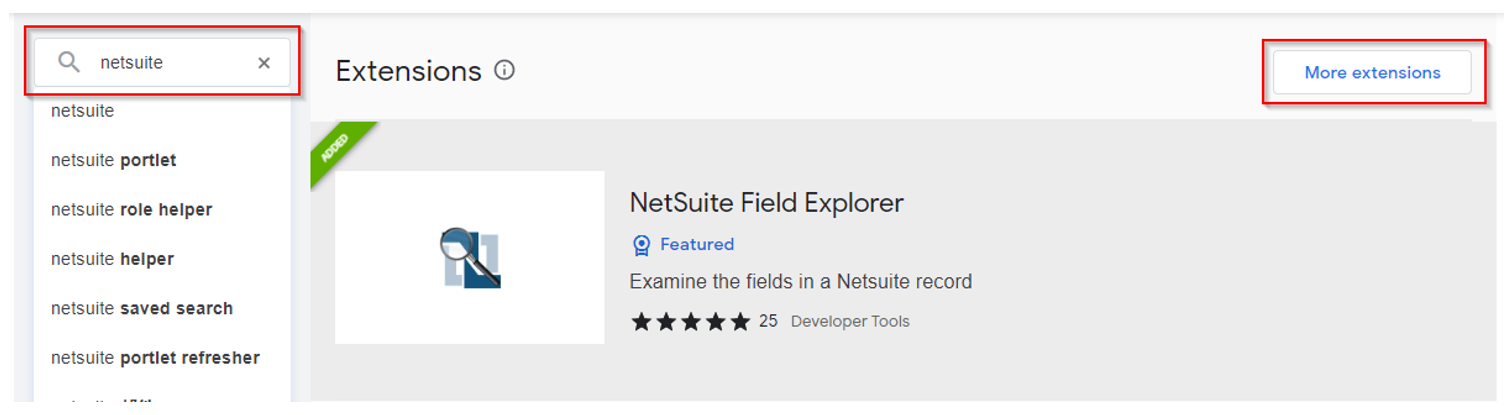
A.) NetSuite Field Explorer by Michoel Chaikin
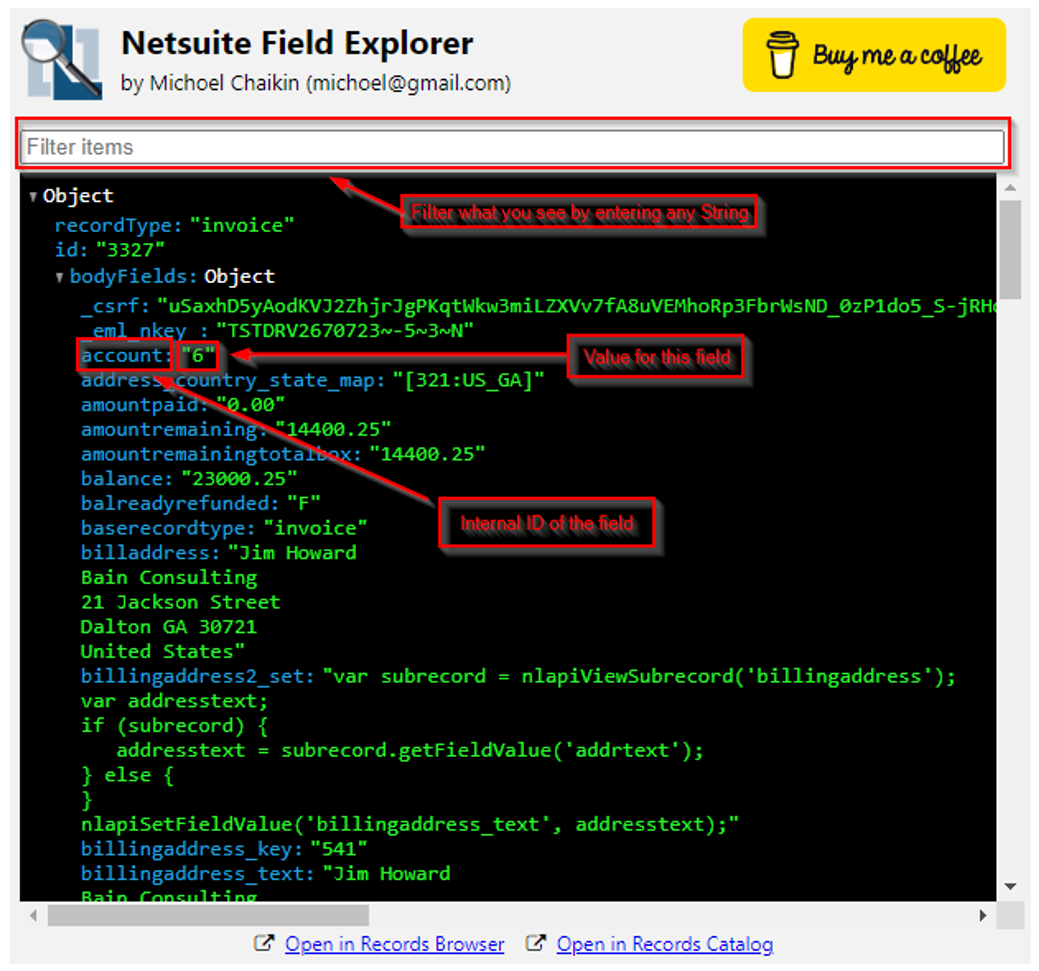
This is probably the most used extension for NetSuite. This extension allows the user to see all the fields on the record by internal ID and the associated value. You can also search for any string to filter what you see. I detailed how to install the extension in my previous article: https://www.suitetoothconsulting.com/view-netsuite-record-data/
Install from Chrome Web Store →
B.) NetSuite: Search Export
As a NetSuite Developer you are going to need to create searches in your scripts. This tool allows you to create a saved search and then export it to 1.0 or 2.X SuiteScript. I use this tool all the time. Click on this to install:
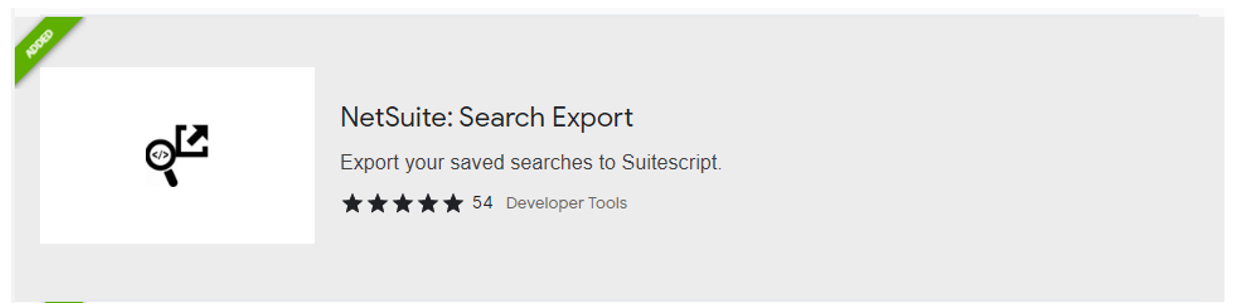
Install from Chrome Web Store → After you install this, create a saved search of all customer records (This extension works for most record types). After saving the search, edit the search and you will see a link at the far right to “Export as Script”.

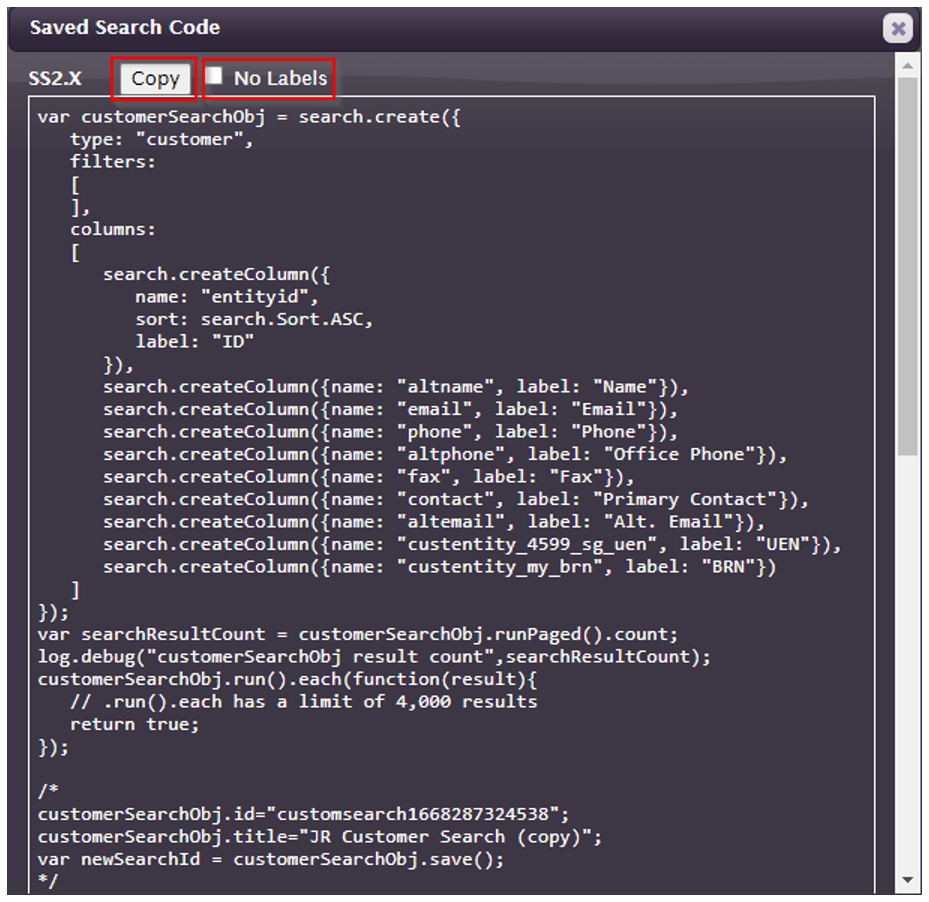
Clicking this link brings up a window where you can copy the three scripted versions of this saved search. The first is the SS2.X version, second is the SS2.X Run in console, and finally the SS1.0 version. Click the “Copy” button at the top of the section to copy. You can also remove the labels by clicking the “No Label” checkbox.
C.) NetSuite: HTML Script Notes
As a developer I’m constantly printing execution logs to debug my code. This extension makes it easy to see the values in an object. lick on this to install:
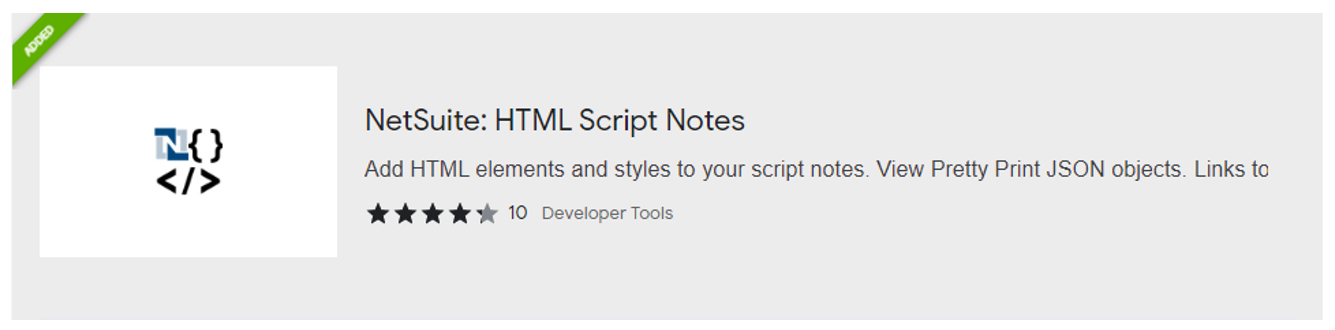
Install from Chrome Web Store → Basically, you call JSON.stringify() on any object and this extension will pretty print the JSON object. Without this extension, it can be very difficult to see the data in an object, especially large objects. I’ve added a lot of characters to the fields in this object to demonstrate.
let data = {
            field1 : 'valuea;lkdfjal;sdjfka;sdkfjals;djkf;alsdjkfla;skdjfa;lskdjfal;dksjfas;ldfjk',
            field2 : 'valueadfa;sldfkj;alsdkfj;alsdkfj;alsdkfja;sldfkjal;sdjfk',
            field3 : 'valueasdflj;alsdkfja;slkdfjal;sdkfja;sldkfja;sldkfja;sldkfja;sldkfjasl;dfkj',
            field4 : 'valuedas;dlfjlasdkfjla;sdkfjla;sdkfj;aslkdfj;asldkfjas;ldkfjasl;dkfj;asldfkj;asldkfj',
            field5 : 'valueadsflasdkjflkasjdflkajsdflkasjdfl;askdjf;laskdjf;alskdfj;alsdkfja;slkdfj;lasdkfj',
            field6 : 'valuead;lfja;sdljfa;sldkfjla;ksdjfl;askjdfl;askdfjl;aksjdf;alksdjf;laksjdf;laskdjf;lkasdjf'
};
log.debug('Data', JSON.stringify(data));
Before extension installation:

After extension installation:

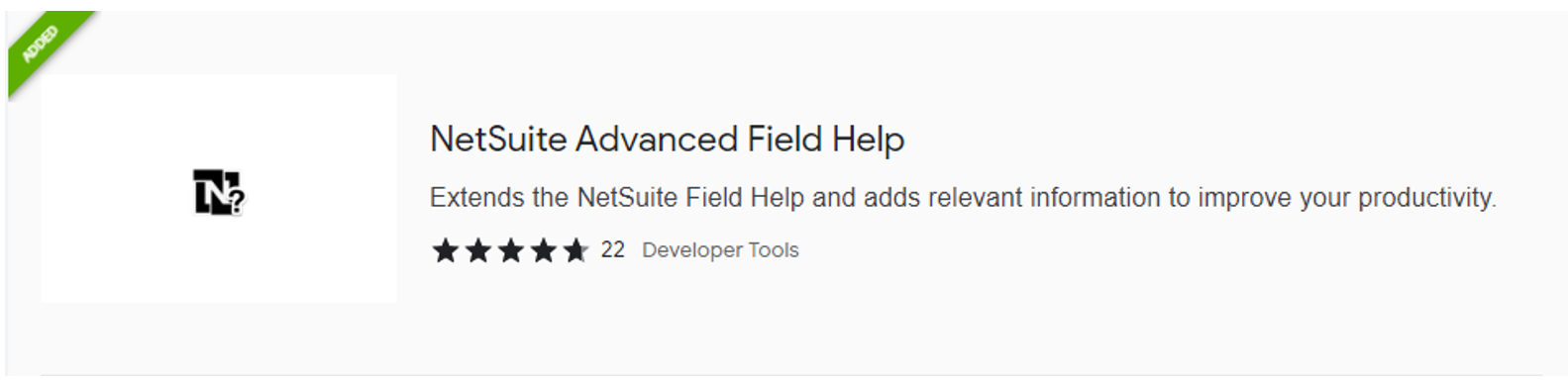
D.) NetSuite Advanced Field Help
The most valuable ability of this extension is to see all the internal IDs and values for a list/record type. Click on this to install:
 Install from Chrome Web Store →
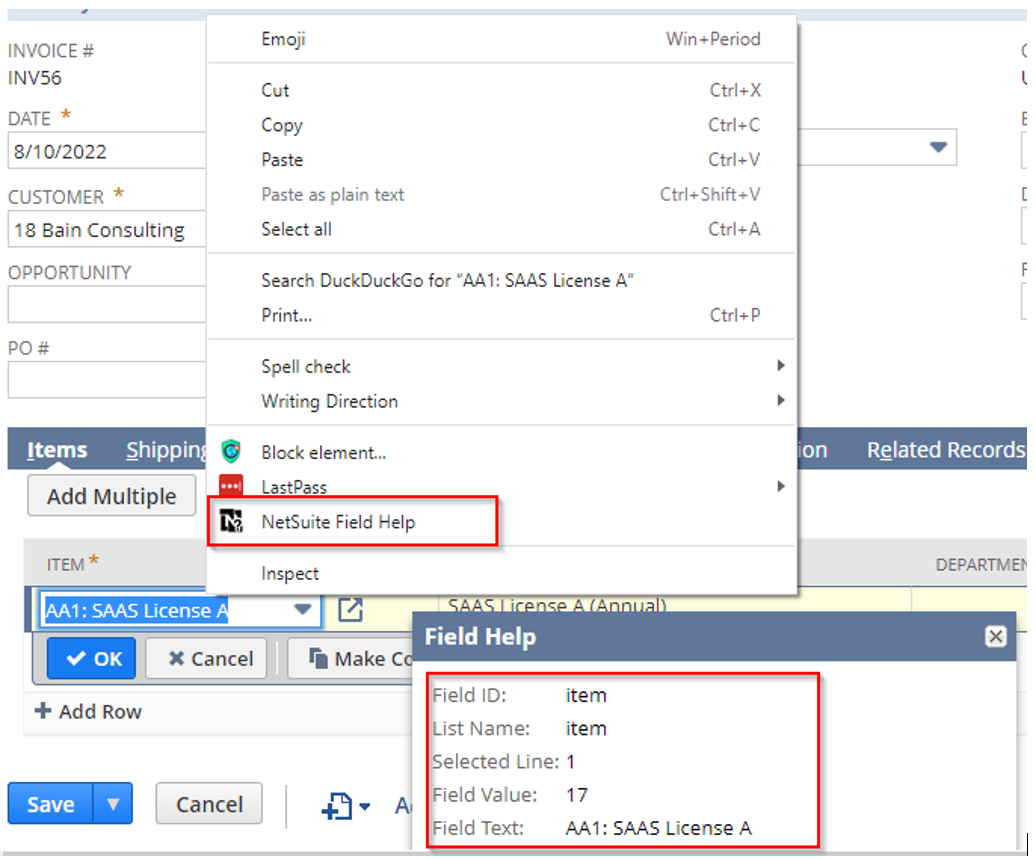
You need to be in edit mode for this extension to work. You can right click on any list/record field and then select “NetSuite Field Help” to see data regarding that field.
Install from Chrome Web Store →
You need to be in edit mode for this extension to work. You can right click on any list/record field and then select “NetSuite Field Help” to see data regarding that field.
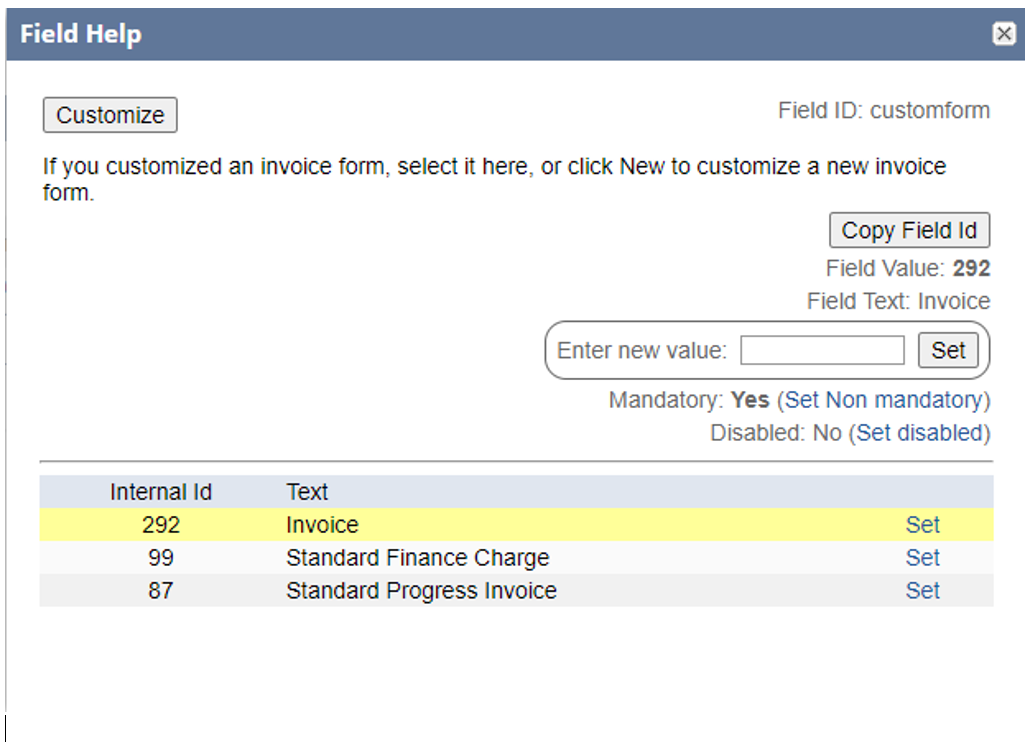
Clicking on the label for any field will show the field help. This extension adds functionality to the field help. For any list/record field it will show the internal IDs and values for that field. The current value is highlighted in yellow. You can set the value of the field using “Enter new value:”. This even works when the field has been disabled so be careful! Making the field mandatory/non-mandatory or disabled/not disabled is available.
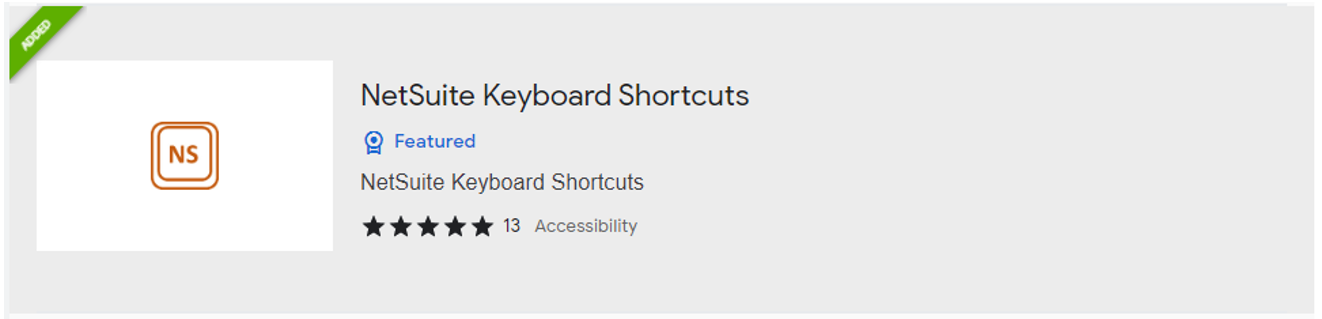
E.) NetSuite Keyboard Shortcuts
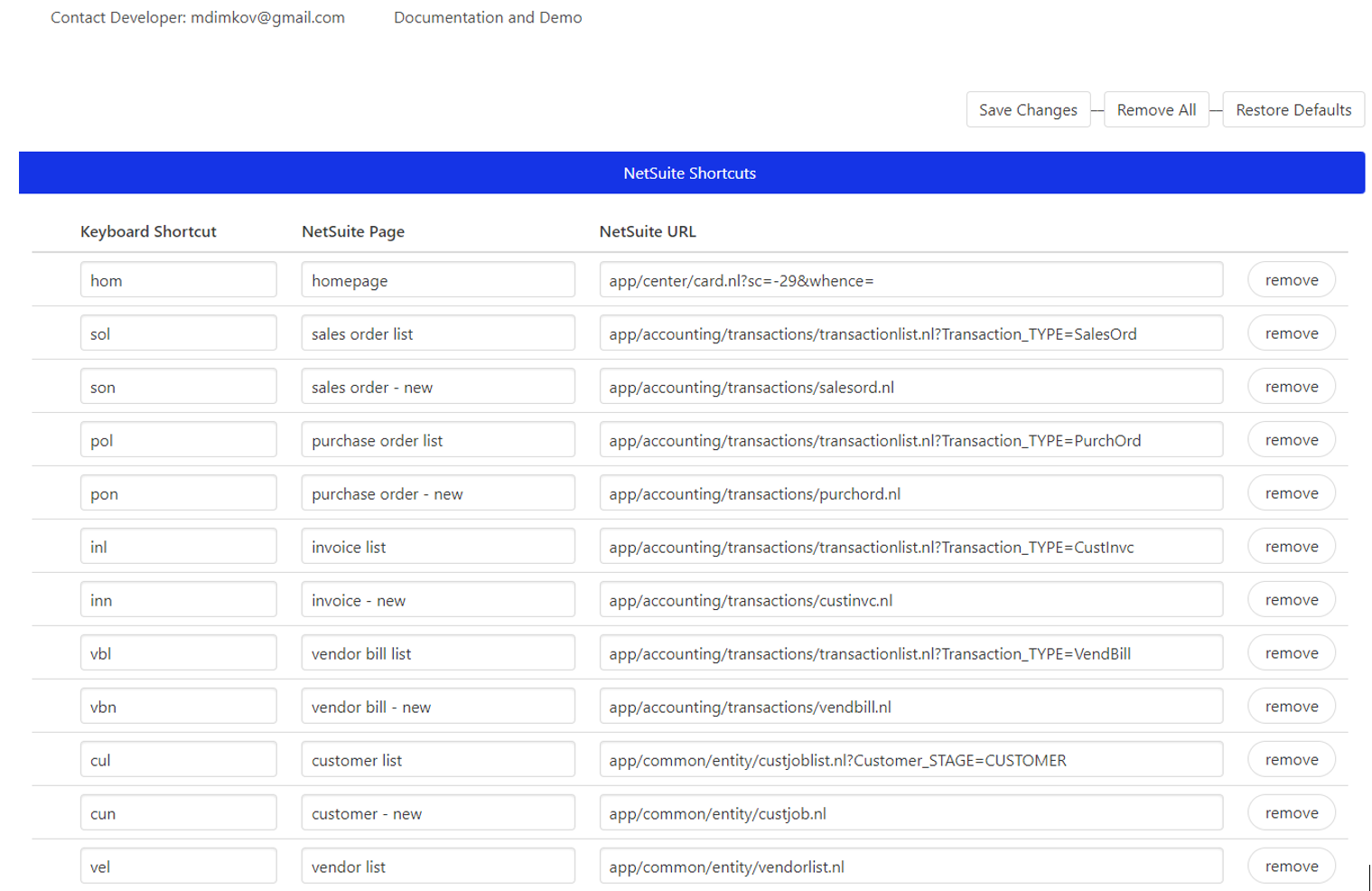
This extension adds lots of keyboard shortcuts so you can avoid having to use the menu navigation. For instance, type the letters REC (when the cursor is not in a field) and it brings to the list of custom records. You preface and shortcut with “N” and it will open in a new tab. You can also add your own shortcuts. Very nice! Click on this to install:
Install from Chrome Web Store → To show the list of shortcuts (and add your own) click on the puzzle piece. Right click on the extension and select Options.
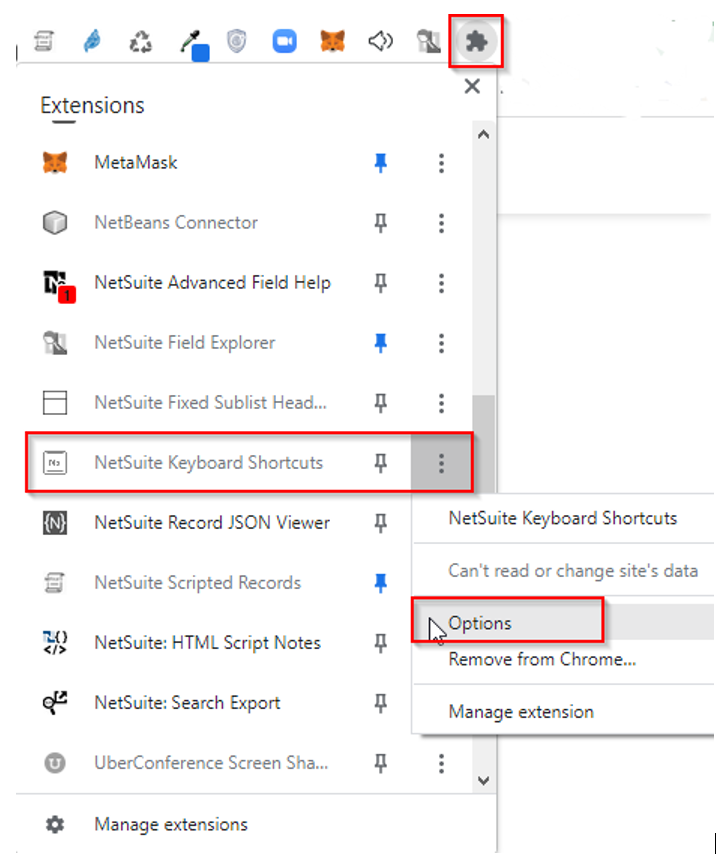
The shortcuts are shown. You can add, change, or remove them:
Conclusion
These extensions will make your development process faster. Do you need help with NetSuite development? Please contact us here to set up a consultation.