

Embed Google Maps on NetSuite customer records to improve logistics, delivery routing, and field-team workflows. Step-by-step customization.
Introduction
Google Maps has become an indispensable tool for businesses looking to provide enhanced customer experiences, optimize logistics and delivery, and target marketing campaigns more effectively. By visualizing a customer’s location on a map, businesses can offer personalized and engaging experiences that build stronger relationships and boost satisfaction. Additionally, having a map of a customer’s location can improve communication, facilitate more effective problem-solving, and support geotargeted marketing efforts.
After reviewing the Google Maps API, I discovered a straightforward customization that businesses can use to add a map to a customer record in NetSuite. In this article, I will guide you through the steps to create a user event script that will display a Google Map on your customer records.
Step 1: Create a Google Maps API Key
The first step is to create a Google Maps API key, which will allow you to access the Google Maps API. To create an API key, go to https://developers.google.com/maps/documentation/javascript/get-api-key and follow the directions. Note that you will need to enter your credit card information, but you won’t be charged until you pick a plan.
Step 2: Create User Event Script
The second step is to create a user event script in NetSuite. This script will get the Google Maps token (or API key) using a script parameter, create an inline HTML field, and set the default value to an iframe that will show the Google Map using the customer’s shipping address. Here is the script:
					/**
 * @NApiVersion 2.1
 * @NScriptType UserEventScript
 */
define(['N/runtime','N/ui/serverWidget'],
    (runtime, serverWidget) => {
        const TOKEN_PARAM_ID = 'custscript_google_map_token';
        const ADDRESS_FIELDS = ['addr1','addr2','city','state', 'zip','country'];
        const beforeLoad = (scriptContext) => {
            try {
                if (scriptContext.type === scriptContext.UserEventType.VIEW){
                    let token = runtime.getCurrentScript().getParameter(TOKEN_PARAM_ID);
                    log.debug('url', 'https://www.google.com/maps/embed/v1/place?key=${token}${getFormatedAddress(scriptContext.newRecord)}');
                    log.debug('token', token)
                    var googleMapField = scriptContext.form.addField({
                        id: 'custpage_googlemap',
                        label: 'Google Map',
                        type: serverWidget.FieldType.INLINEHTML
                    });
                    googleMapField.defaultValue = '` +
                    '';
                }
            }catch(e){
                log.error('beforeLoad',e);
            }
        }
        const getFormatedAddress = (recordCustomer) => {
            try {
                let intLineNum = recordCustomer.findSublistLineWithValue({
                    sublistId: 'addressbook',
                    fieldId: 'defaultshipping',
                    value: true,
                });
                if (intLineNum != -1){
                    let recAddress = recordCustomer.getSublistSubrecord({
                        sublistId: 'addressbook',
                        fieldId: 'addressbookaddress',
                        line:  intLineNum
                    });
                    let addressText = ADDRESS_FIELDS.map(x=>{return recAddress.getValue(x)}).filter(y=>{return y.length>0}).join('+');
                    log.debug('address', `&q=${addressText}`)
                    return `&q=${addressText}`
                }
            }catch(e){
                log.error('getArrayAddress',e);
            }
        }
        return {beforeLoad}
    });
Step 3: Deploy the Script
Deploy the script on the customer record. To deploy the script, reference the article “Quick Guide to Adding and Deploying a Script in NetSuite”. Create a script parameter named “Google Map Token” with an ID of “_google_map_token.”
Step 4: View a customer record with a shipping address
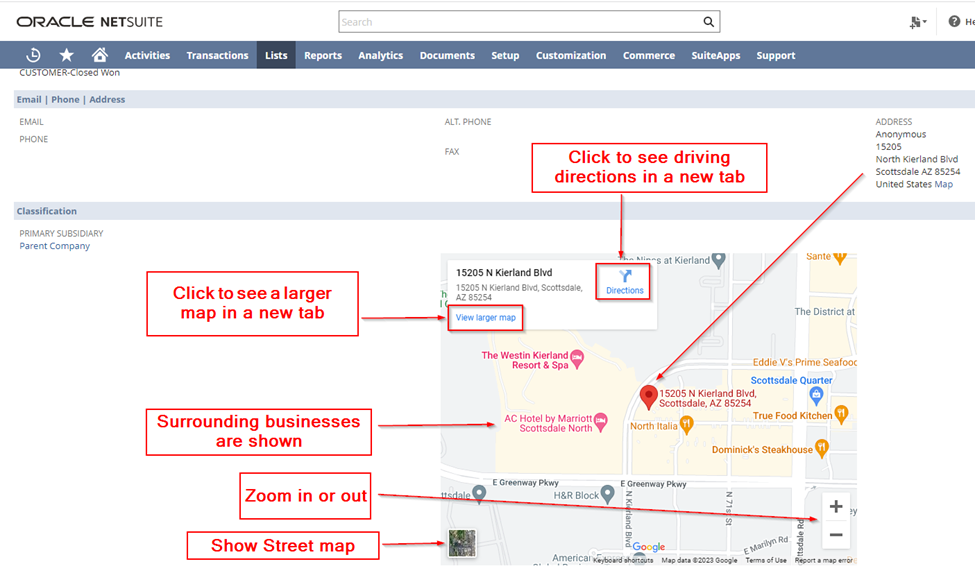
Once you have deployed the script, go to a customer record that has a shipping address. You will see the Google Map on the customer record.
Conclusion
Adding a Google Map to your NetSuite customer records is a simple customization that can enhance your customer experience, improve communication, and support geotargeted marketing efforts.